Simple Side Note: Never Lose a Note Again
UPDATE · v1.2.0
Never lose a note again
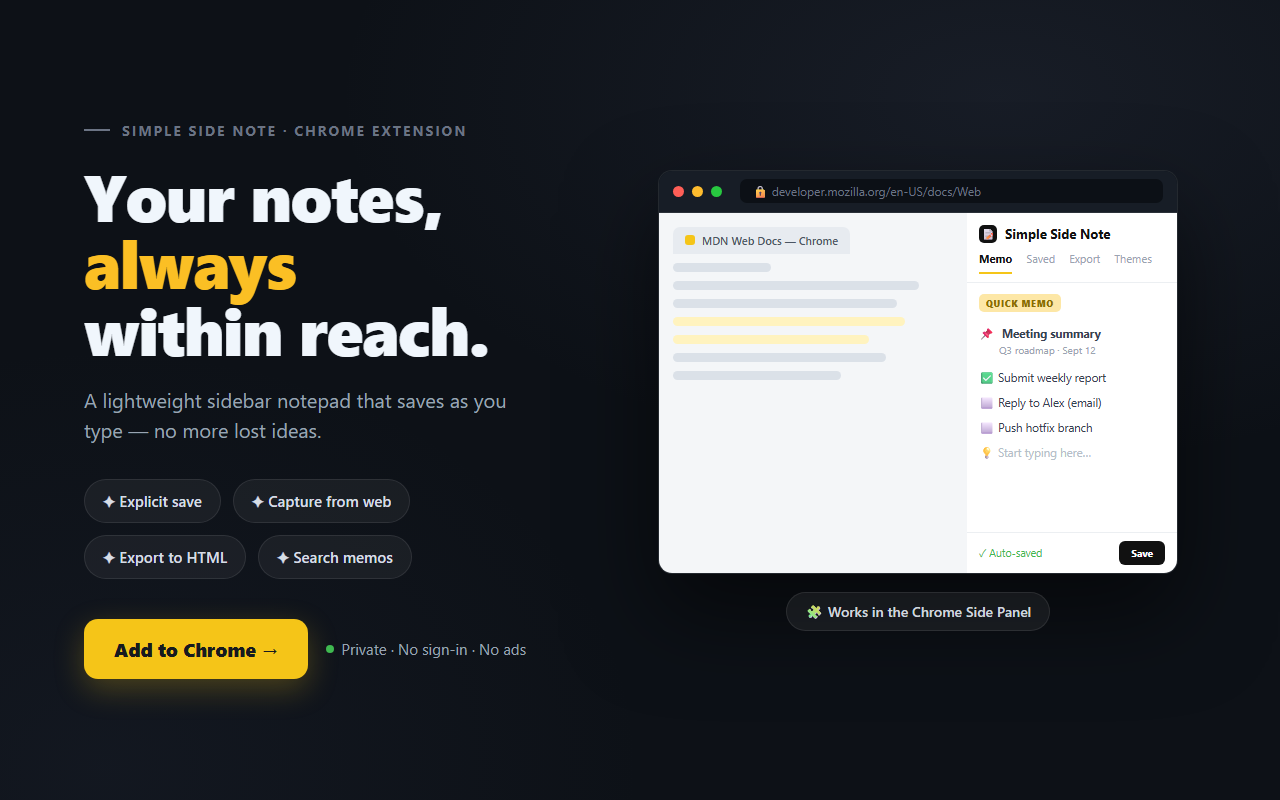
Simple Side Note — the lightweight notepad that lives right in your browser sidebar — is now on v1.2.0. In one line, this release is all about "keep your data safe, and keep your hands on the keyboard."
📝 At a glance
- 💾 Backup & Restore — export all your notes to a single file and import them back anytime
- ⌨️ Keyboard shortcuts —
⌘/Ctrl+Sto save,⌘/Ctrl+Fto search (toggle in Settings) - 🖥️ OS system fonts — San Francisco on Mac, Segoe UI on Windows, applied automatically
- 🐛 Small fixes — unified color-button tooltip language, and more
💾 Backup & Restore — the star of this release
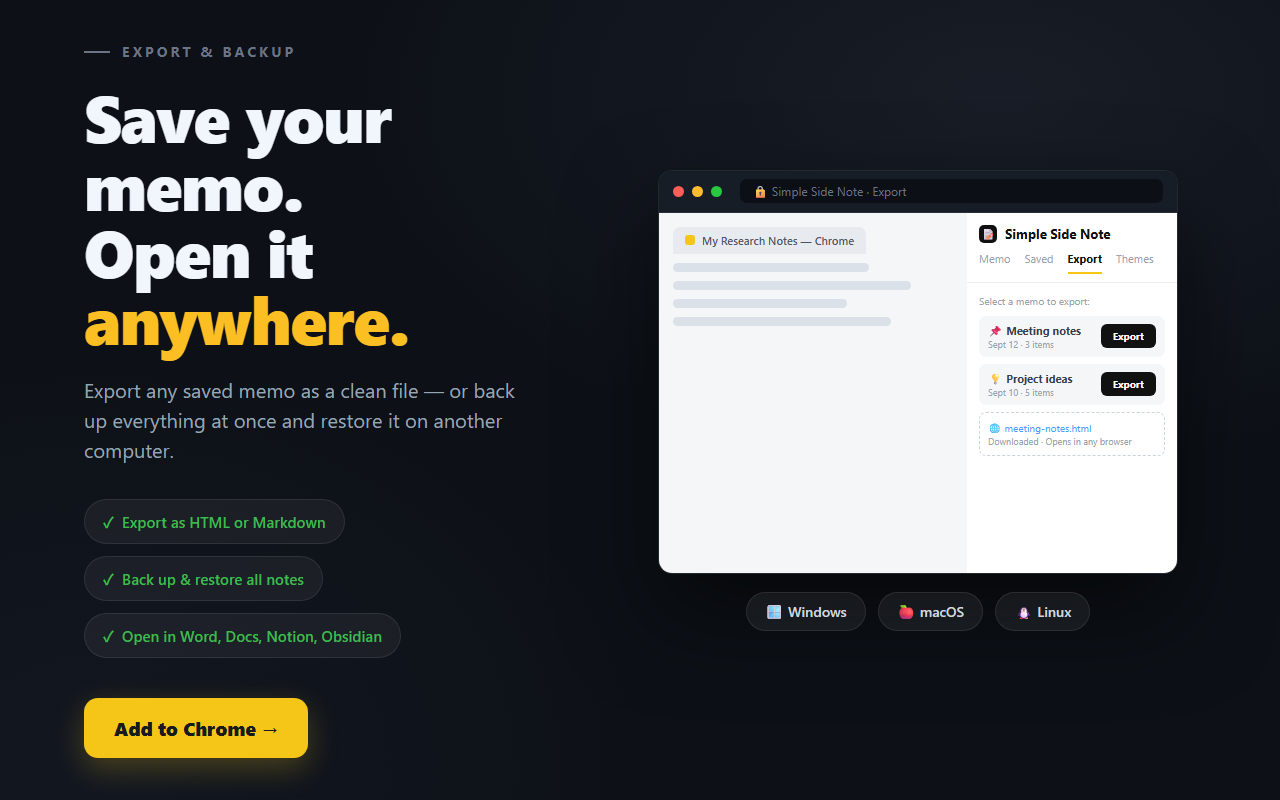
As your notes pile up, one worry grows with them: "What if I lose all of this?" Until now you could export notes one at a time as HTML or Markdown, but there was no way to back up everything at once. Delete the extension by accident or switch computers, and the notes you'd collected could be gone.
Starting with 1.2.0, two buttons in ⚙️ Settings → Backup & Restore take care of it.
- 📤 Export all — download every saved note (title, content, pin, date) as a single dated file, e.g.
simple-side-note-backup-2026-07-10.json - 📥 Import — load a backup file and merge it into your current notes
Why it's safe to use
Import never deletes your existing notes. It only adds. On top of that:
- Duplicates are skipped. Import the same backup file twice and your list stays clean.
- If note identifiers collide internally, new ones are assigned automatically, so your data never gets tangled.
- If a save fails — for example when storage is full — it tells you instead of silently dropping the note.
⌨️ Keyboard shortcuts — save and search without the mouse
You can now work with your notes without lifting your hands off the keyboard.
| Action | macOS | Windows / Linux |
|---|---|---|
| Save | ⌘ S | Ctrl + S |
| Search | ⌘ F | Ctrl + F |
- The modifier key adapts to your OS —
⌘on Mac,Ctrleverywhere else. Hover a button to see its shortcut in the tooltip. ⌘/Ctrl+Fjumps straight to the saved-notes search box instead of the browser's built-in find.- Prefer the browser's default behavior? You can turn the shortcuts off in the ⚙️ Settings tab.
🖥️ OS system fonts — natural on every platform
So the notepad no longer feels out of place next to your browser and OS, the UI and editor now use each platform's native system font.
- Mac → San Francisco (
-apple-system) - Windows → Segoe UI
- Linux → Roboto, etc.
No setup needed — just open it, and your notes render in the typeface that fits your current OS best. Your exported HTML files now match that look, too.
🐛 Small improvements
- The font-color buttons (black / red / blue) had Korean-only tooltips; they're now unified to English (Black / Red / Blue) for consistent UI language throughout.
📢 This update is for you if…
- ✅ You've worried about losing your notes → one backup file has you covered
- ✅ You want to save and search fast without clicking → keyboard shortcuts
- ✅ You move between Mac and Windows → native fonts that feel right everywhere
Install & update
- 🛒 Chrome Web Store: Install Simple Side Note
- 💻 GitHub: github.com/swyoonlabs/simple-side-note
- 🌐 Developer blog: swyoonlabs.blogspot.com
Already installed? The Web Store updates you to the latest version automatically.
If you installed from source, grab the latest build and hit Reload on chrome://extensions/ to get 1.2.0.
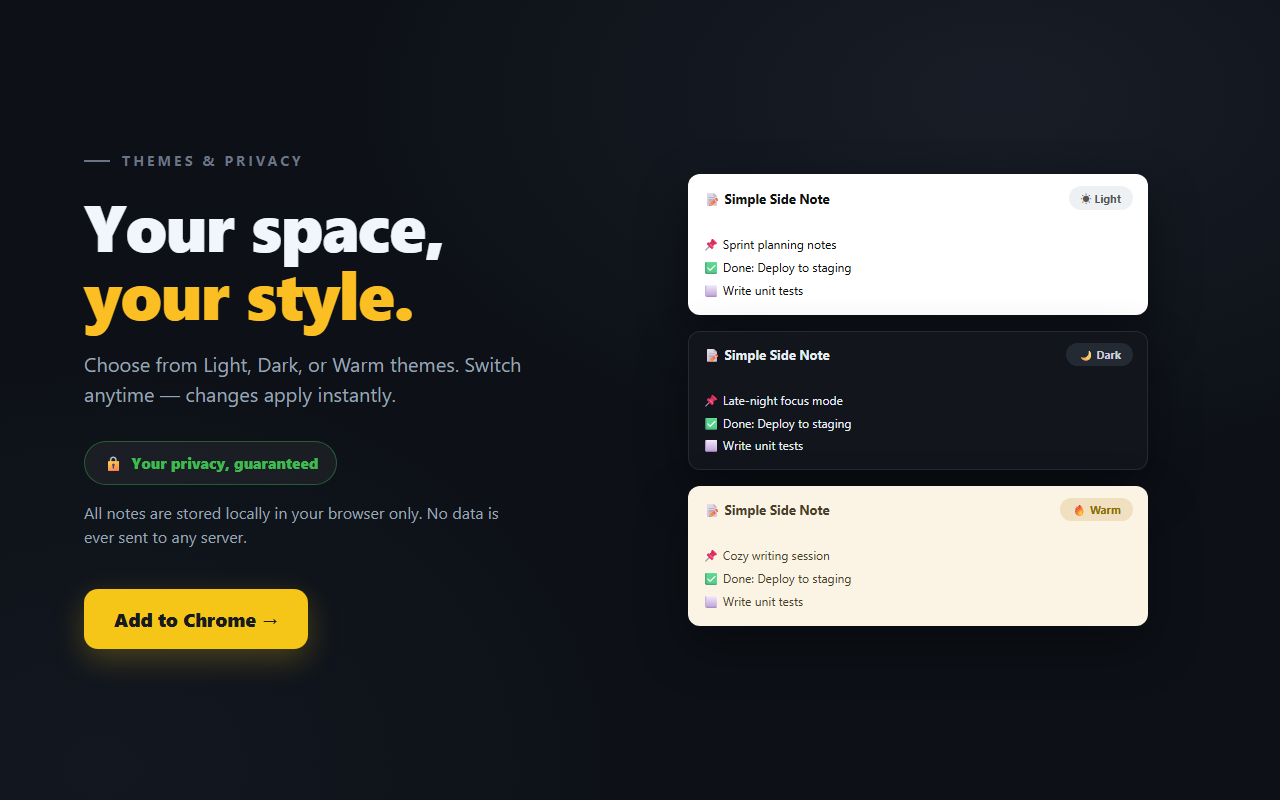
Simple Side Note keeps every note on your device only — nothing is ever sent to a server. And now, with Backup, your notes stay entirely in your own hands. 📝


Comments
Post a Comment