Side Panel Clock: A Clock, World Clock, Timer & Pomodoro for the Chrome Sidebar
Fully revised · July 2026. This post replaces the original five-part "dev diary" teaser with a single, complete guide: why I built Side Panel Clock, how to install and use it, how the code works, and how to put it to work in your own day.
I spend most of my working day inside the browser, and all day long I kept doing the same tiny things: glancing at the clock, working out what time it was for a teammate three time zones away, and starting a quick timer so a task wouldn't quietly eat an hour.
None of these are hard. The problem is that each one pulled me away from what I was doing. The OS clock meant looking off-screen. A world-clock site meant a new tab. A timer meant yet another tab or a phone app I'd forget to check. Individually trivial; together, a steady drip of small interruptions.
So I built Side Panel Clock — a small Chrome extension that puts a clock, a world clock, a timer, and a Pomodoro into the browser sidebar, one glance away with zero context switches.
What Side Panel Clock does
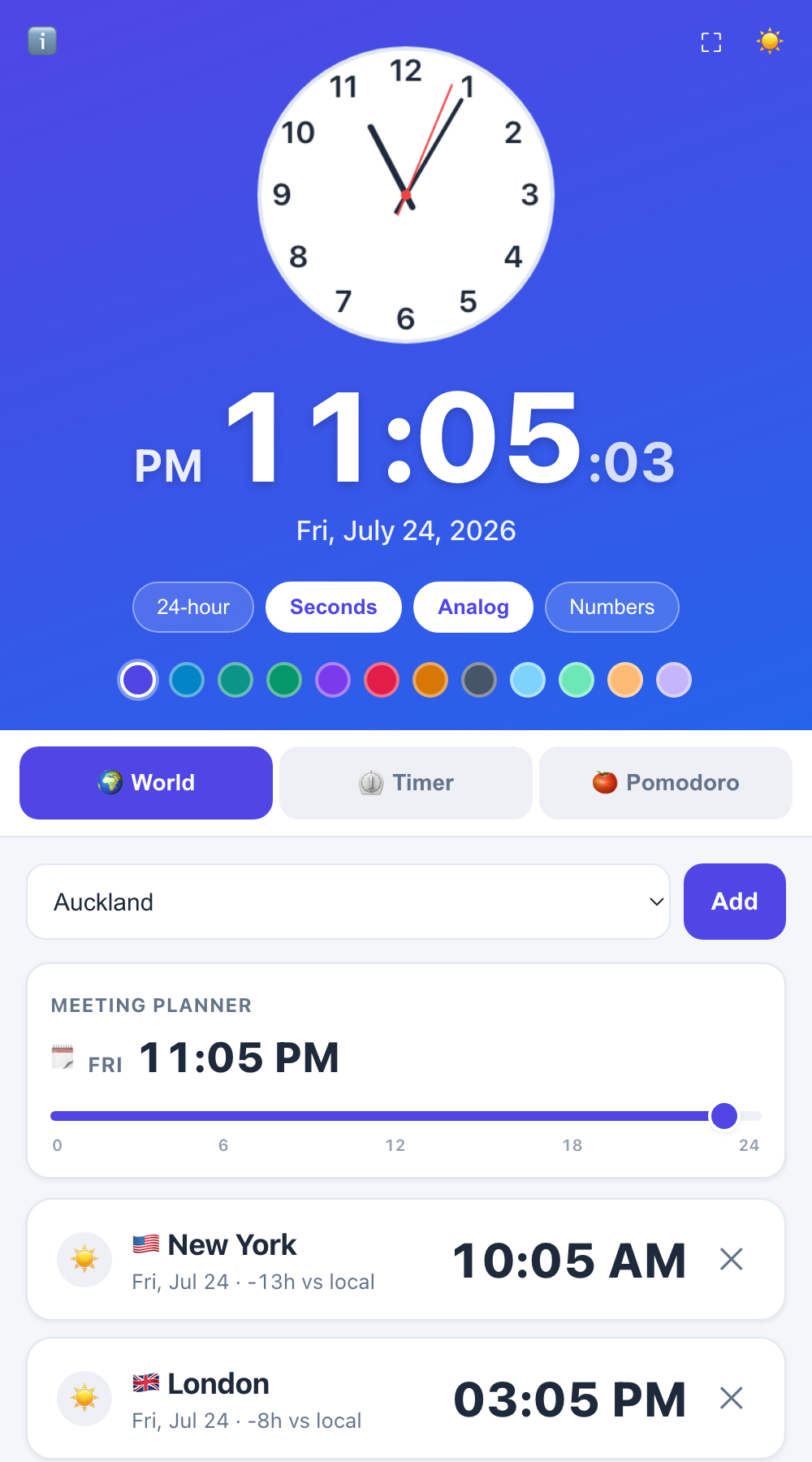
The panel is split into a pinned clock at the top that is always visible, and a switchable bottom area with three views.
| Area | What it does |
|---|---|
| 🕐 Clock (pinned) | Large digital + analog clock; toggle 12/24-hour, seconds, and the analog face on or off |
| 🌍 World Clock | Current time in 20 major cities, automatic offset from your timezone, add and remove cities |
| ⏲️ Timer | Circular progress ring, custom input or presets (1/3/5/10/25 min), sound + notification on finish |
| 🍅 Pomodoro | Automatic focus/break cycling, progress ring, today's session count, fully customisable durations |
The UI is available in 8 languages — English (default), Korean, Japanese, Simplified Chinese, Spanish, French, German, and Brazilian Portuguese — with dates, times, and city names localised automatically via the browser language.
Install in 3 steps
- Install from the Chrome Web Store.
- Pin the clock icon to your toolbar (via the puzzle-piece 🧩 menu) if it isn't already.
- Click the icon to open the side panel. The clock appears immediately on the right side of your browser and stays there while you browse.
If you prefer to inspect the code first, the full source is on GitHub. You can load it unpacked from
chrome://extensionswith Developer mode enabled.
How to use each feature
Clock
The top section is always visible regardless of which bottom view you're on. Three toggle buttons control it:
- 24h — switch between 12-hour (AM/PM) and 24-hour format
- Seconds — show or hide the seconds digit (and the analog second hand)
- Analog — show or hide the analog clock face drawn on HTML Canvas
A 🌙 / ☀️ button toggles between dark and light themes.
World Clock
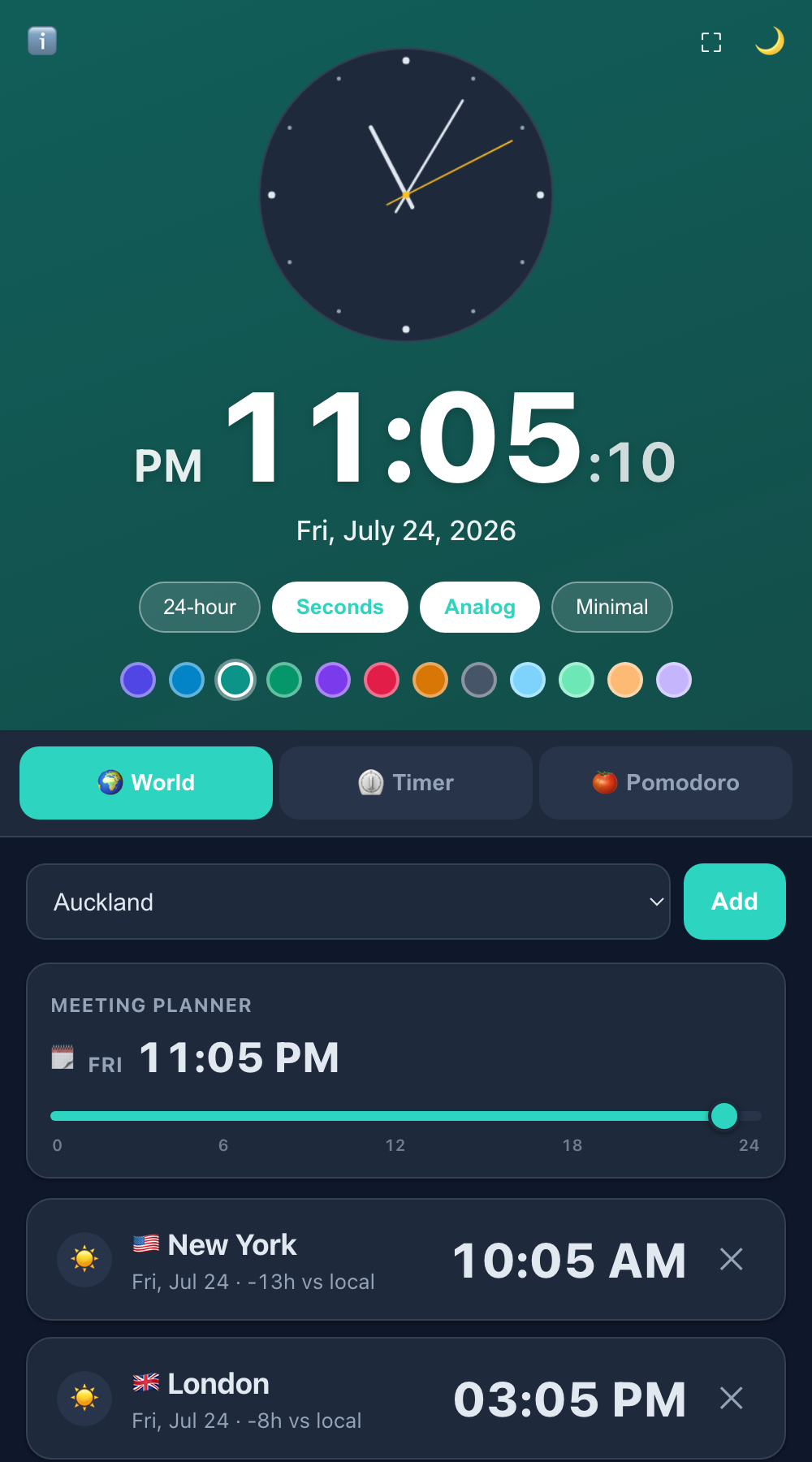
- Switch to the 🌍 World tab at the bottom.
- Pick a city from the dropdown and click Add.
- Each city card shows the local time, date, and the offset from your timezone (e.g.
+9horSame time). - Click ✕ on a card to remove that city.
You never do timezone math yourself — the offset is computed for you on every tick.
Timer
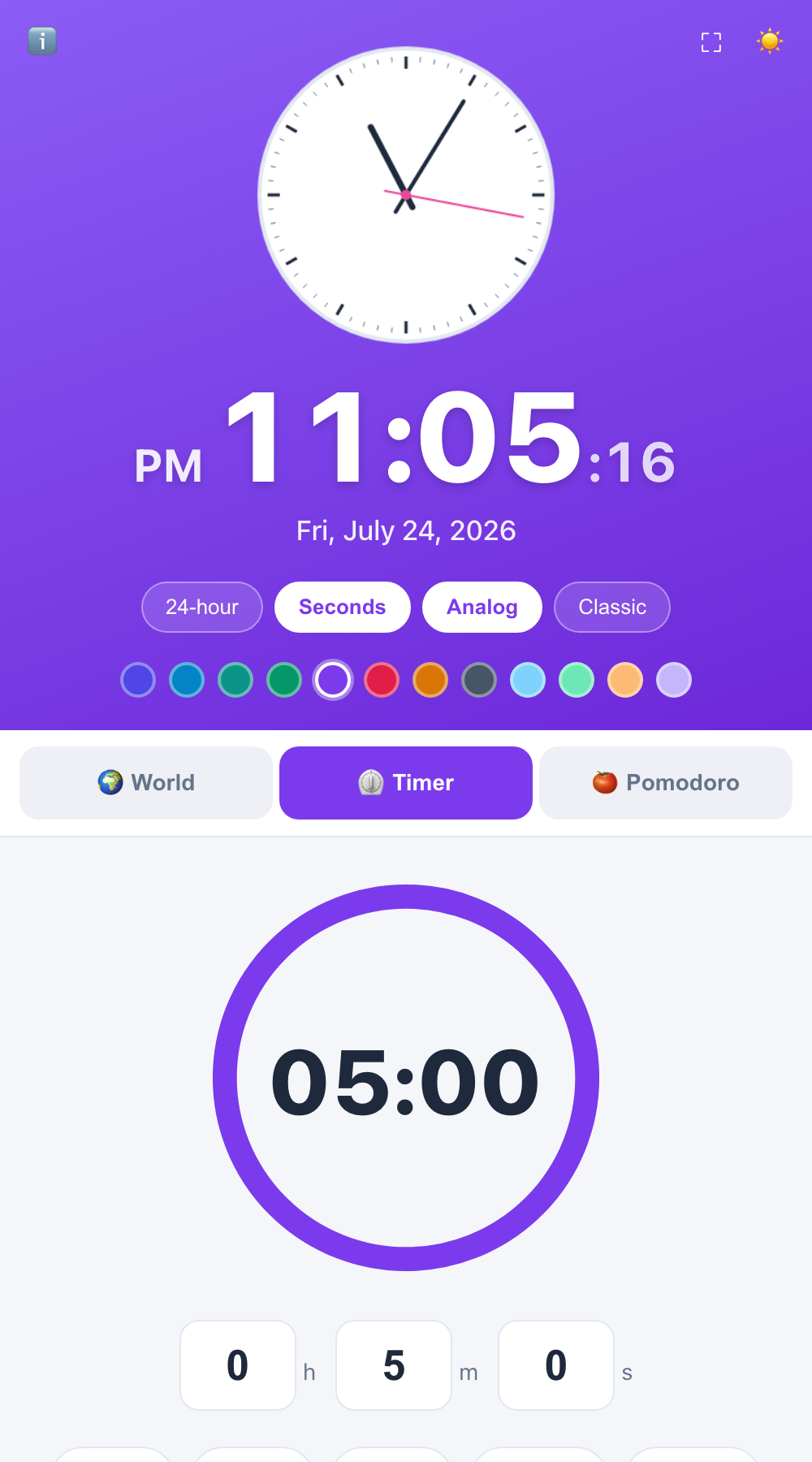
- Switch to the ⏲️ Timer tab.
- Either click a preset chip (1, 3, 5, 10, or 25 minutes) or type custom hours/minutes/seconds.
- Click Start. The ring counts down visually; when it hits zero, a notification appears and a short beep plays.
- Pause freezes the timer; Reset clears it back to zero.
The timer keeps running even if you close the side panel or switch tabs — more on how that works below.
Pomodoro
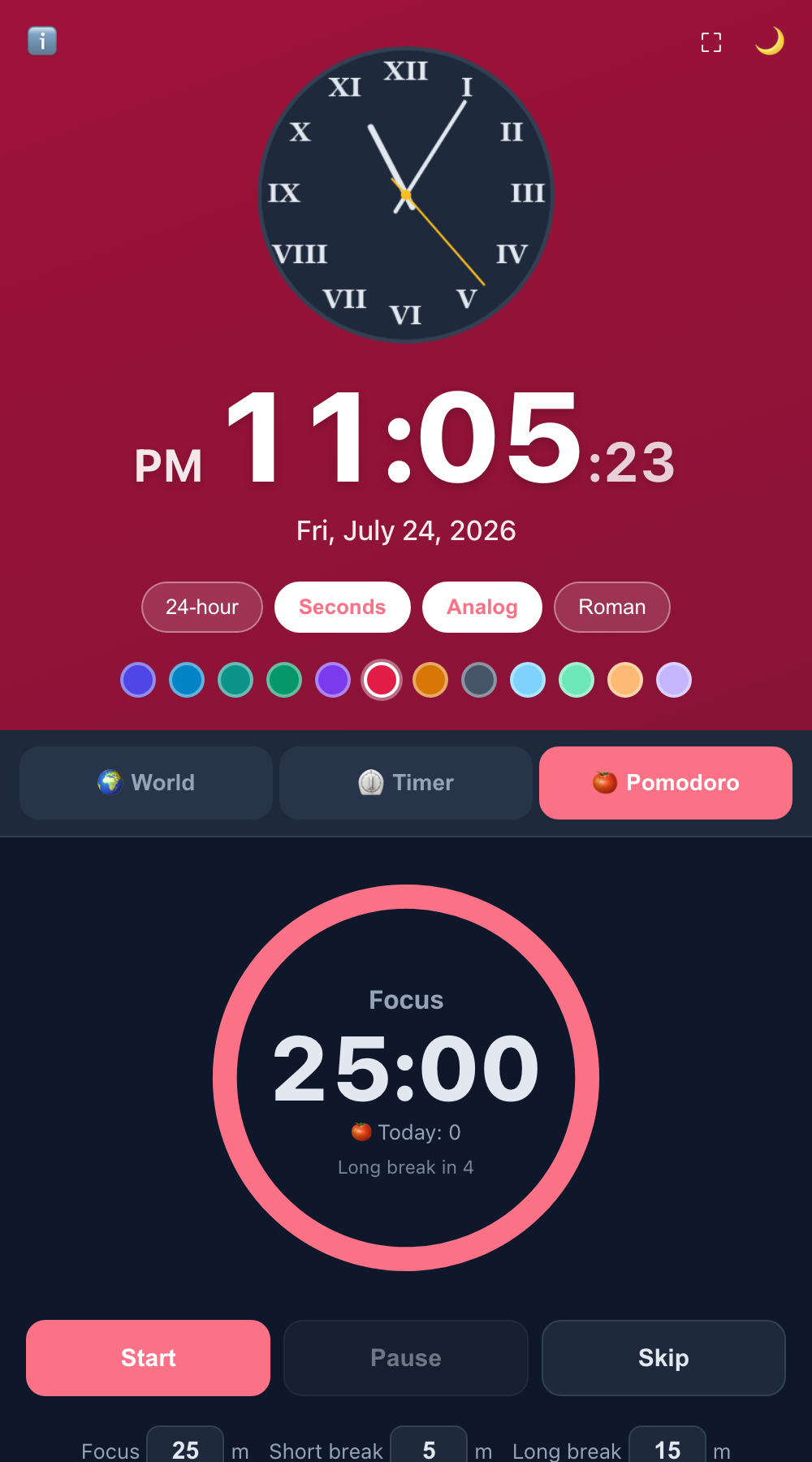
- Switch to the 🍅 Pomodoro tab.
- (Optional) Customise the focus, short break, and long break durations.
- Click Start to begin a focus session.
The Pomodoro automatically cycles through focus and break phases. After every focus session the count increases; after every fourth focus session a longer "long break" is used instead of a short break. When a phase ends, a notification tells you what's next and the panel's ring switches to the new phase — even if the panel was closed when the timer fired.
| Control | Action |
|---|---|
| Start | Begin or resume the current phase |
| Pause | Freeze the countdown |
| Skip | Jump between focus and break without counting a session |
| Reset sessions | Zero the session count and return to the focus phase |
How it's built: the interesting parts
Side Panel Clock is intentionally dependency-free: no framework, no bundler, no build step. It is plain HTML, CSS, and a few hundred lines of vanilla JavaScript. The four interesting engineering problems were claiming the side panel, keeping timers alive in Manifest V3, computing world times correctly, and drawing an analog clock face.
Claiming the side panel (Manifest V3)
The manifest.json declares the sidePanel permission and points the panel at an HTML page:
{
  "manifest_version": 3,
  "name": "Side Panel Clock",
  "permissions": ["sidePanel", "storage", "alarms", "notifications"],
  "background": { "service_worker": "background.js" },
  "side_panel": { "default_path": "sidepanel.html" }
}
By default the panel opens from Chrome's puzzle-piece menu. To make the toolbar icon toggle it directly, the background service worker sets the panel behaviour on install:
chrome.runtime.onInstalled.addListener(() => {
  chrome.sidePanel
    .setPanelBehavior({ openPanelOnActionClick: true })
    .catch((err) => console.error(err));
});

// Run again at the top level so it still works
// when the service worker restarts.
chrome.sidePanel
  .setPanelBehavior({ openPanelOnActionClick: true })
  .catch((err) => console.error(err));
That second top-level call matters. Manifest V3 service workers are event-driven and can be shut down at any time; setting the behaviour at the top level ensures it is re-applied whenever the worker spins back up. See Chrome's official guide: Side Panel API.
Keeping timers alive with chrome.alarms
The hardest part of a browser-based timer is that the side panel — and its JavaScript — can disappear at any moment. The user closes the panel, the service worker is terminated, and setTimeout / setInterval are gone.
The solution is chrome.alarms. When you start a timer, the panel asks the background service worker to schedule a precise alarm:
function startTimer(seconds) {
  if (seconds <= 0) return;
  timerState.total = seconds * 1000;
  timerState.endAt = Date.now() + seconds * 1000;
  timerState.running = true;
  chrome.alarms.create("timer", { when: timerState.endAt });
  store.set({ timerRunning: true, timerEndAt: timerState.endAt });
}
The alarm fires in the service worker, which then sends a notification and relays the event back to the panel if it is open:
chrome.alarms.onAlarm.addListener(async (alarm) => {
  if (alarm.name === "timer") {
    await handleTimer();
  } else if (alarm.name === "pomodoro") {
    await handlePomodoro();
  } else {
    return;
  }
  chrome.runtime.sendMessage({ type: "ALARM_FIRED", name: alarm.name }).catch(() => {});
});
Because the alarm timestamp and the timer state are persisted in chrome.storage.local, the panel can reconstruct the running timer the next time it opens — it just compares endAt against the current Date.now().
This pattern is why the timer and Pomodoro survive a closed panel, a switched tab, or even a browser restart. See the official docs: chrome.alarms API.
Pomodoro phase cycling
The Pomodoro logic lives in the service worker so that breaks advance automatically even when the panel is closed. After each focus session the worker decides whether to start a short or long break:
async function handlePomodoro() {
  const { pomo } = await chrome.storage.local.get("pomo");
  if (!pomo || !pomo.cfg) return;

  const finished = pomo.phase;
  let count = pomo.count || 0;
  let nextPhase;
  if (finished === "focus") {
    count += 1;
    const every = pomo.cfg.longEvery || 4;
    nextPhase = count % every === 0 ? "long" : "short";
  } else {
    nextPhase = "focus";
  }

  const dur = (pomo.cfg[nextPhase] || 1) * 60000;
  const endAt = Date.now() + dur;
  const next = { ...pomo, phase: nextPhase, count, running: true, endAt };
  await chrome.storage.local.set({ pomo: next });
  chrome.alarms.create("pomodoro", { when: endAt });
}
The default cycle is 25 min focus → 5 min short break, with a 15 min long break every fourth focus session. All durations are user-configurable.
World clock with the Intl API
Computing "what time is it in Tokyo?" sounds simple until you remember daylight saving time, half-hour offsets (India is UTC+5:30), and quarter-hour offsets (Nepal is UTC+5:45). Doing the math by hand is a bug farm.
The extension avoids all of that by delegating to the browser's built-in Intl.DateTimeFormat with an IANA timezone name:
function updateWorldTimes() {
  const now = new Date();
  $$("#worldList .world-item").forEach((li) => {
    const zone = li.dataset.zone;
    const timeStr = new Intl.DateTimeFormat(UILANG, {
      timeZone: zone,
      hour: "2-digit",
      minute: "2-digit",
      hour12: !settings.h24,
    }).format(now);
    const dateStr = new Intl.DateTimeFormat(UILANG, {
      timeZone: zone,
      month: "short",
      day: "numeric",
      weekday: "short",
    }).format(now);
    li.querySelector(".wtime").textContent = timeStr;
    li.querySelector(".sub").textContent = `${dateStr} · ${localOffsetLabel(zone, now)}`;
  });
}
The browser engine handles all DST transitions and fractional offsets; the extension just formats and displays the result.
Drawing the analog clock on Canvas
The analog face is drawn with the Canvas 2D API inside the same requestAnimationFrame loop that updates the digital clock. The key is converting hours, minutes, and seconds into angles and drawing hands as rounded lines from the centre:
function drawAnalog(now) {
  const r = analog.width / 2;
  actx.clearRect(0, 0, analog.width, analog.height);
  actx.save();
  actx.translate(r, r);

  // ... face circle and tick marks ...

  const h = now.getHours() % 12;
  const m = now.getMinutes();
  const s = now.getSeconds();
  const ms = now.getMilliseconds();

  const hand = (angle, length, width, color) => {
    actx.beginPath();
    actx.lineCap = "round";
    actx.lineWidth = width;
    actx.strokeStyle = color;
    actx.moveTo(-Math.sin(angle) * (length * 0.18), Math.cos(angle) * (length * 0.18));
    actx.lineTo(Math.sin(angle) * length, -Math.cos(angle) * length);
    actx.stroke();
  };

  const secAngle = ((s + ms / 1000) * Math.PI) / 30;
  const minAngle = ((m + s / 60) * Math.PI) / 30;
  const hourAngle = ((h + m / 60) * Math.PI) / 6;

  hand(hourAngle, r * 0.5, 6, tick);
  hand(minAngle, r * 0.72, 4, tick);
  if (settings.seconds) hand(secAngle, r * 0.78, 2, accent);
}
Using requestAnimationFrame (rather than setInterval) gives a smooth sub-second second hand when the panel is visible and costs nothing when it is hidden.
Real-world workflows
Coordinate meetings across time zones
Add the cities of your teammates to the World Clock view. While you plan in your calendar tab, the side panel shows you each city's local time and the offset from yours — so you never accidentally schedule a meeting at someone's 3 AM again.
Run a Pomodoro focus session
- Switch to the 🍅 tab.
- Start a 25-minute focus session.
- When the break notification fires, step away for 5 minutes.
- Repeat. After four sessions, take a 15-minute long break.
Because the timer lives in chrome.alarms, you can close the panel, switch tabs, or even close the laptop lid — the notification will still fire when the phase ends.
Box your writing time
Set the Timer to 25 or 50 minutes and commit to a single task until the bell rings. The visible countdown ring creates a gentle sense of urgency without the overhead of a full task-management app.
Privacy & permissions
Side Panel Clock requests four permissions. Here is exactly what each one is for:
| Permission | Why it's needed |
|---|---|
sidePanel |
Display the clock UI in the Chrome side panel |
storage |
Save your settings, world-clock cities, and timer state locally |
alarms |
Schedule timers so they fire even when the panel is closed |
notifications |
Notify you when a timer finishes or a Pomodoro phase changes |
There is no server, no account, no sign-in, and no analytics. All data lives in chrome.storage.local on your machine. Nothing is uploaded anywhere. The full privacy policy is in the repository.
Download & links
- 🛒 Chrome Web Store: Side Panel Clock
- 🔗 Source code: github.com/swyoonlabs/sidepanel-clock
- 🔒 Privacy policy: privacy-policy.html
If you find it useful, a rating on the Web Store helps other people discover it. Bug reports and suggestions are welcome on the GitHub repository.
Side Panel Clock · Swyoon Labs · v1.0.0


Comments
Post a Comment